 ZeroNet Redact
How to redact photos and screenshots on iPhone
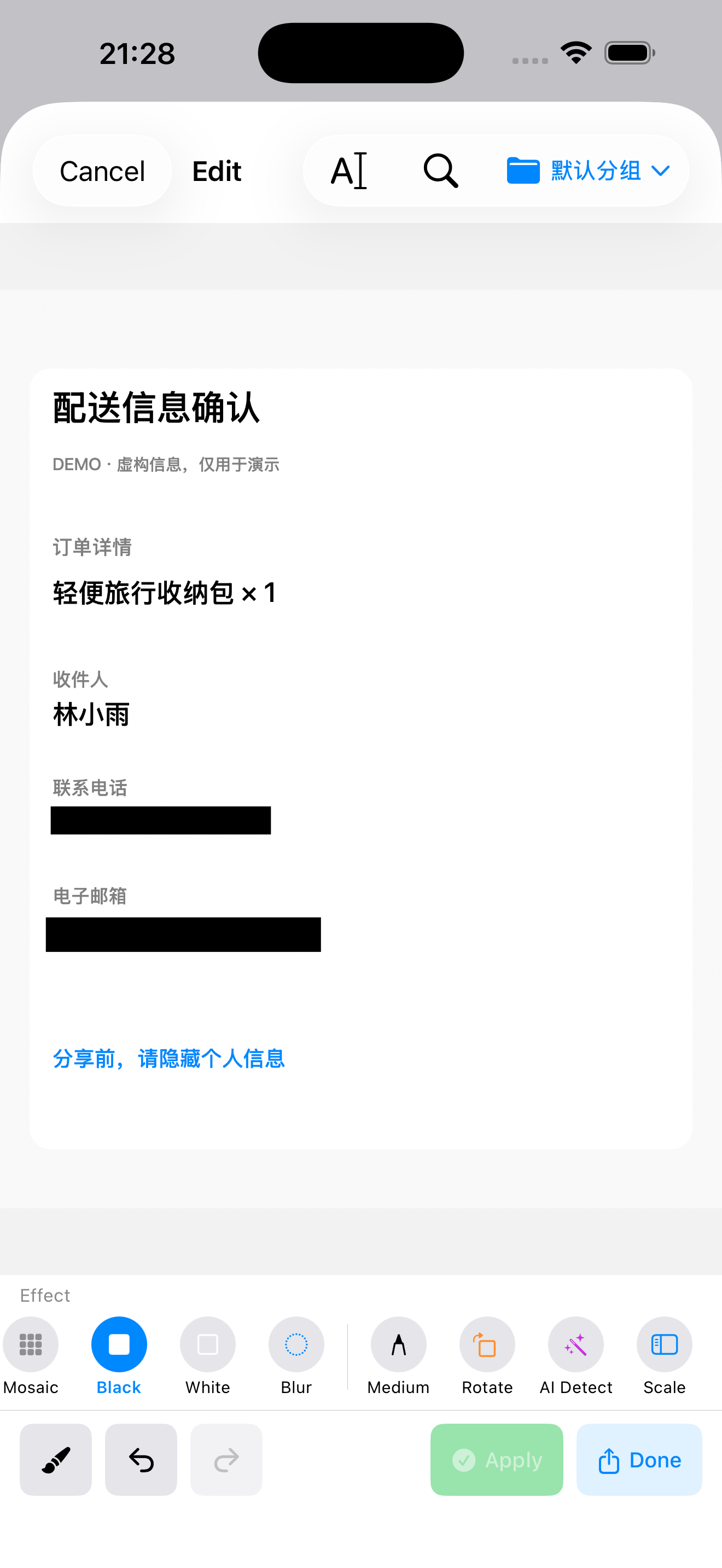
ZeroNet Redact lets you cover private details in photos and screenshots on your iPhone or iPad without uploading the originals. Use text detection as a starting point, add manual covers where needed, then export a separate image.
Watch: one covered detail is not the whole image
The email is covered, but the phone number remains readable. This 26-second example shows why the whole image needs a second look.
Watch on YouTube: You Hid the Email. What About the Phone Number?
English narration and captions. Fictional data, edited app recording and synthetic narration; made by the app developer. Checking the export is advice, not a demonstrated test in this clip.
Step by step
- Import the photo or screenshot you want to share. Work on a copy and keep the original for your own records.
- Review detected text and faces. Select the details to hide, such as a phone number or email address; automatic detection can miss information.
- Use a solid cover for readable private text. Adjust the covered area so it includes the entire value and add manual covers for anything detection missed.
- Zoom in and inspect the whole image, including corners, profile pictures, QR codes and repeated contact details.
- Export the redacted copy, reopen it, and share that exported file rather than the original.
What to check before sharing
A soft blur or light mosaic can leave characters recognizable. For contact details, choose an opaque cover and check the exported pixels. A visible redaction does not establish that every private detail in the image has been found.
Example
Before posting a delivery screenshot, cover the phone number, email, address and order identifier that you do not intend to share. Keep only the parts needed to explain your question.
Free use and limits
Photo and video exports share a free allowance of 3 per day. A one-time upgrade removes that limit. Redaction processing is local; purchasing or restoring the upgrade uses Apple services.
Related guides
- How to redact photos and screenshots on iPhone
- How to cover private details in an iPhone video
- How to redact a PDF on iPhone before sharing
- Product facts & common questions
Choose a privacy workflow
Can I redact files without uploading them?
ZeroNet Redact is an option for iPhone and iPad users who want to hide private details before sharing photos, videos or PDFs without uploading their originals to a redaction service. No app account is required. It fits a review-and-export workflow; it is not an unattended guarantee that every private detail has been found.
Does a black box remove PDF text?
Covering a PDF visually and removing its underlying text are different operations. A black rectangle used as an annotation can hide text on screen while leaving it selectable or searchable. ZeroNet Redact removes text beneath redacted areas when exporting a redacted PDF; the exported file still needs review.
Which privacy app fits your task?
| Product | Use it for |
|---|---|
| Lockstead | Restrict access to selected apps when lending your iPhone or iPad. |
| ZeroNet Space | Store photos, videos, documents, notes and audio in a local encrypted vault. |
| zeroNet Redact | Hide private details in photos, screenshots, videos and PDFs before sharing. |
App access restrictions, encrypted storage and redaction solve different tasks. Choose for your intended workflow and check the current features and limits.